Showing posts with label ubuntu. Show all posts

Ubuntu Live CD Will Let You Upgrade To Newer Ubuntu Versions [Ubuntu 11.04 Development]

An update to the Ubuntu 11.04 installer (Ubiquity) finally brings upgrade support to the Ubuntu Live CD. That means that for instance if you use Ubuntu 10.10, when you'll boot the Ubuntu 11.04 Live CD you'll have an option to upgrade (without losing your documents and installed applications). Besides this change, there's also a redesigned partitioner:
Ubuntu 11.04 LiveCD installer

(here's another screenshot, but in this one the 'install alongside' option is missing for some odd reason)

Because this has just landed in Ubuntu 11.04 (and because Ubuntu 11.04 is still in alpha!), it's best not to try this feature yet as it may break stuff (I didn't tested it).

Here is how the partitioner looks when you're using a different Linux distribution:


Ubuntu 11.04 LiveCD installer

For more Ubuntu 11.04 Natty Narwhal news, browse our Natty development tag.

Make Windows 7 Look Like Ubuntu With Maverick For Win7


If you dual-boot or have to use Windows 7 for work and miss Ubuntu, here's something you can use to make Windows look more familiar: a Windows 7 theme called 'Maverick for Win7' designed to look like the Ubuntu Ambiance theme (the latest version in Ubuntu 10.10 Maverick).


Make Windows 7 Look Like Ubuntu With Maverick For Win7

Ubuntu 10.04.2 released

The second maintenance update of Ubuntu 10.04 LTS has been released.

Ubuntu 10.04 LTS will be supported with routine maintenance updates until April 2013 on desktops and April 2015 on servers,

The release integrates ‘numerous post-release updates’ including security updates and ‘corrections for high-impact bugs, with a focus on maintaining stability and compatibility with Ubuntu 10.04 LTS.’

A full Change log for Ubuntu 10.04.2 can be viewed on @ wiki.ubuntu.com/LucidLynx/ReleaseNotes/ChangeSummary/10.04.2

Download

Ubuntu 10.04.02 can be downloaded @ ubuntu.com/desktop/get-ubuntu/download

RadioTray 0.6.3 Released With Ubuntu AppIndicator Support, Sleep Timer


RadioTray 0.6.3


RadioTray is a minimalistic radio player stat runs in the notification area (system tray).


Finally a new version of RadioTray was released which adds support for Ubuntu appindicator, a new command line parameter '--resume' to play the last radio station before RadioTray was shutdown and a new sleep timer so you can go to sleep while listening using RadioTray. These features were actually included in the 0.6.2 version which was released yesterday but a bug prevented it from running so version 0.6.3 was released to fix that.


Install RadioTray 0.6.3 in Ubuntu


1. Download RadioTray Ubuntu .deb from Sourceforge and install it normally. If you encounter any issues, read on. If not, enjoy RadioTray!


Possible issues:


a) If you use the Faenza Icon theme installed from a PPA, the RadioTray installation will return an error and it will fail to install. Fix it using the following command:
sudo dpkg -i --force-all /var/cache/apt/archives/radiotray_0.6.3_all.deb #or replace with the path to where you've downloaded radiotray


b) If you've installed 0.6.2 and it failed to start for you, to be able to use 0.6.3 you'll have to run the following command (warning: it will remove all the configuration files):

rm -r /.local/share/radiotray


Enable AppIndicator

By default, Radiotray still uses the notification area in Ubuntu - that's because using the appindicator, there’s no tooltips and no mouse-scroll to control volume. But if you want to enable the appindicator for RadioTray, run the following command in a terminal:
gedit ~/.local/share/radiotray/config.xml

The OMG! Ubuntu! Guide to the best indicator applets around

The default desktop of Ubuntu 11.04 Natty Narwhal will no longer support the traditional GNOME panel applets many of us have become accustomed to.


Supplanting them fully will be ‘Application Panel Indicators’. These new breed of notification area entries are designed to be consistent and unified in look and function, thus leading to a desktop more in tune with itself and with its users.


Just as with GNOME Applets you’re free to pick and choose which of these you use, install or run, so here’s a quick run down of the most popular ‘App indicators’ and ‘Indicator Applets’ presently available along with all the links/info you need to install them.


Note that for simplicities sake we’ve opted to not mention indicators that ship with Ubuntu by default – Tomboy, Transmission, etc.


Ubuntu One Indicator


By design Ubuntu One doesn’t come with a status area icon, something many users sorely miss.


Roman Yepishev did a bit more than moan about missing it, fashioning this gorgeous ‘Ubuntu One indicator-applet’. It lets you view and monitor your Ubuntu One accounts’ sync status with nothing more than a single click on on the panel icon.


More information on features, along with PPA installation instructions can be found by clicking this link.


Touchpad-indicator


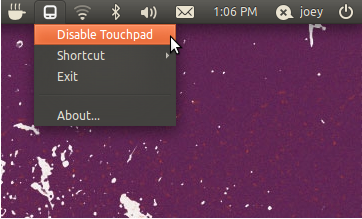
Accidentally hitting the laptop track-pad is a pet peeve with a lot of users, but this tiny-indicator helps put paid to that.

image


Install via the official PPA:


sudo add-apt-repository ppa:lorenzo-carbonell/atareao


sudo apt-get update && sudo apt-get install touchpad-indicator


MyWeatherIndicator


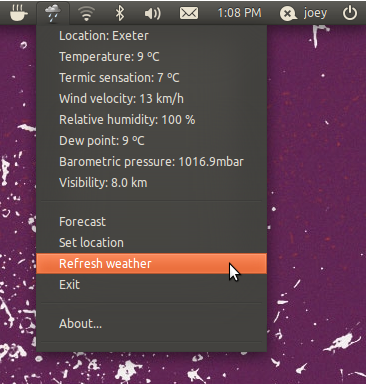
My-weather-indicator is a panel-based weather forecast apple able to relay a surprisingly wide range of meteorological information.

image


It’s early days for the indicator but it gets a thumbs up from me for one reason: it’s simple. No endless menus or check-boxes to get up and running; just slap in your location and you’ll know the weather.


Install via the official PPA:


sudo add-apt-repository ppa:lorenzo-carbonell/atareao


sudo apt-get update && sudo apt-get install my-weather-indicator


CPUFreq


Monitoring CPU usage is a top priority for many users on portable devices. By limiting the clock speed of your laptop/netbook you can, in theory, extend your battery life a little lone. CPU-Freq offers all the functions of the standard GNOME Cpu-Freq applet but in indicator clothing.
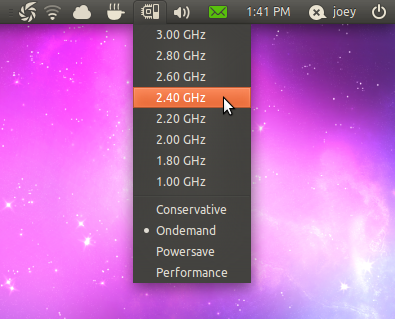


The applet can be installed by running the following commands in a Terminal: -


sudo add-apt-repository ppa:anton-sudak/indicators


sudo apt-get update && sudo apt-get install indicator-cpufreq


Indicator-Workspaces


Switching workspaces via an indicator is an idea that, on paper, seems over-kill, particularly in light of other, faster methods.


And then I tried it.


Now installed by default in several Ubuntu-based distributions, this mini switcher is a lot more useful than many give it credit for.


Find install instructions here.


Indicator Keylock


Be alerted to when the caps lock, scroll lock or number lock keys are ‘on’ or ‘off’. ‘Piffle?’ you say? Although my keyboard does have a ‘caps lock’ light – I never remember to look at it so, for fellow unobservant folks out there, this is worth its salt.


Indicator Keylock applet


Installation instructions, along with a bit more rationale, can be found here.


Clipboard managers


Are you one of those people who copy and paste a lot? If so you may already use a clipboard manager to, well, manage your clipboard. With anticipation of Natty’s depreciation of familiar GNOME applets be sure to cast a mental CTRL+C over the following indicators replacements.


Pastie


‘Pastie’ looks and does what you’d expect it to. With a mono-icon and ‘Clean history’ button it sits as one of the best of its ilk available to Ubuntu users.


Installation instructions and a bit more information is in this post.


Diodon


A similarly purposed indicator is Diodon. Lacking a mono-panel icon, it does look out of place when using Ubuntu’s default theme. That said it’s a light and capable tool worthy of consideration.
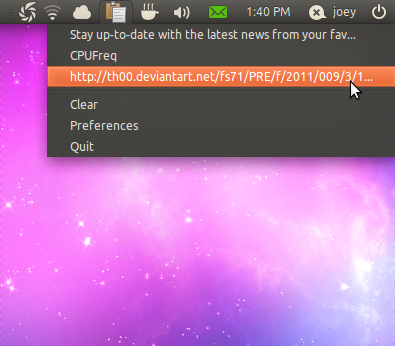


Stable build PPA for Maverick users can be found here.


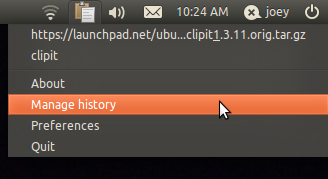
Clip It


An Indicator-based fork of clipboard manager ‘ParcelLite’, ClipIt boasts very little to differentiate itself from rivals. The lack of a ‘clean’ option within the menu list makes it the perfunctory third choice in this list.


Download can be found @ sourceforge.net/projects/gtkclipit/


USB Removal


Safely remove USB thumb drives, mounted SD Cards and more with ‘USB Safe Removal application indicator’ (Or Indicator-unmount’ for short ;) ). The tiny app doesn’t sing, it certainly doesn’t dance but it does do what it says on the tin: eject mounted drives.


Download and further information can be found here..


LookIt!


TinyGrab inspired screenshot tool ‘Lookit’ is a mini-marvel for us bloggers, many of whom are seemingly insatiable for ‘yet more’ screenshots to prop up our dubiously written texts.


As an app Lookit is neat, configurable, allows for quick capturing and uploading of screenshots and runs directly from the notification area. No extra windows, no more hassle.


The beta release of ‘LookIt’ can be downloaded in .deb from from the project page or installed from the testing PPA below in a few hours time.


  • sudo add-apt-repository ppa:lookit/testing

  • sudo apt-get update && sudo apt-get install lookit


The latest stable version can be installed using the Lookit stable PPA: -


  • sudo add-apt-repository ppa:lookit/ppa

  • sudo apt-get update && sudo apt-get install lookit


Indicator-Virtualbox


We’ve covered this quick-launch applet for Virtualbox machine in depth recently. Suffice to say it’s nothing more than a glorified quick launch menu for your VirtualBox machines.


Indicator virtualbox for Ubuntu


Indicator-Wallpaper changer


This applet works in tandem with the tray based wallpaper changer DesktopNova. It’s easy to use and easy to install, making it a perfect app for impatient wallpaper lovers.


image


Full instructions are here, along with how to install.


Caffeine


Caffeine helps prevent Ubuntu from ‘sleeping’. Controlled directly via the notification area, Caffeine is easily one of the best uses of an Indicator presently available.
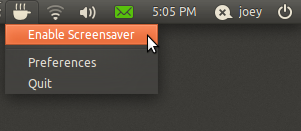


Lucid and Maverick users can add the ‘ppa:caffeine-developers/ppa’ to their software sources to install.


Chances are there are a few I’ve missed. Shoot a mail over to contact@omgubuntu.co.uk and I’ll see that it’s added to the list.

Working with the Ubuntu Messaging Menu

Today I had a frustrating time working with the Ubuntu Messaging Menu, so here are some notes for the next time I hit this problem. Thanks awfully to Ken Vandine for clearing up my confusion!


There is little to no documentation (at the moment) about how to properly integrate with the Messaging Menu from a program. The specification has an API section, which is not programming documentation, and it's confusing. It says, in part:


While running, a registered application can also provide either a single count of new messages, or a set of separate message sources (for example, mail folders or syndicated feeds) with their own counts or times. For example, a Laconica client may provide only the single count, because it presents its updates in a single list and not as separately navigable items. A Usenet newsreader, on the other hand, may provide an item for each newsgroup that has new messages.


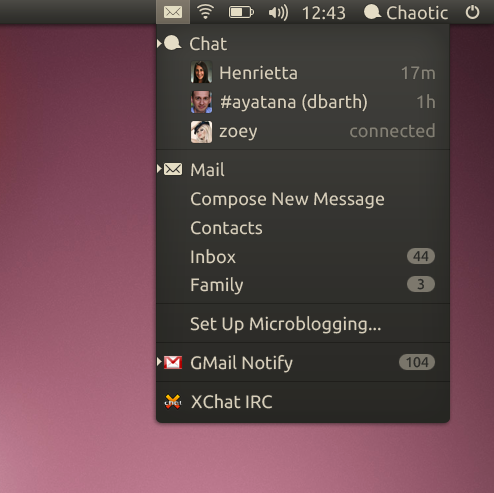
This suggests that an item in the Messaging Menu, for a specific program, should be able to provide a count of messages, or have a number of "sub-items" (message sources) which each have their own count. The mockup image on that wiki page also suggests that this is the case: see "GMail Notify" in the mockup:


As far as I can tell, this isn't possible. First, a little terminology.


A program in the messaging menu can have three types of menu entry. The main entry for a program I've called the server, because that's how it's referred to in code. If a program is registered with the messaging menu, the server item will appear in the MM even if the program isn't running. A program can also, if registered, add extra shortcuts to the menu to do specific things. Finally, while the program is running, it may add one or more message sources to the menu which show a count or time for the messages that have arrived for that source; the mail application would have one source for each mail account you have, for example.


So, according to the mockup and the spec, and using our new terminology, it should be possible to set a message count on a server. It is not.


Instead, you have to create both a server and at least one source.


Here I'm only going to talk about adding MM items while your program is running. If you want the server item to appear in the MM even when your program is not running (that is, make it so people can start your program from the MM) then read up on registration in the spec.


To create the server item:


# get the indicate module, which does all the work
import indicate
# Create a server item
mm = indicate.indicate_server_ref_default()
# If someone clicks your server item in the MM, fire the server-display signal
mm.connect("server-display", show_window_function)
# Set the type of messages that your item uses. It's not at all clear which types
# you're allowed to use, here.
mm.set_type("message.im")
# You must specify a .desktop file: this is where the MM gets the name of your
# app from.
mm.set_desktop_file("/usr/share/applications/myapp.desktop")
# Show the item in the MM.
mm.show()


Ideally, as mentioned, you'd now be able to set a count on that server item, but you can't. So we need to create a source as well. (Some people call this an "indicator" for this server; the spec calls it a "message source".)


# Create a source item
mm_source = indicate.Indicator()
# Again, it's not clear which subtypes you are allowed to use here.
mm_source.set_property("subtype", "im")
# "Sender" is the text that appears in the source item in the MM
mm_source.set_property("sender", "Unread")
# If someone clicks this source item in the MM, fire the user-display signal
mm_source.connect("user-display", show_window_function)
# Light up the messaging menu so that people know something has changed
mm_source.set_property("draw-attention", "true")
# Set the count of messages in this source.
mm_source.set_property("count", "15")
# If you prefer, you can set the time of the last message from this source,
# rather than the count. (You can't set both.) This means that instead of a
# message count, the MM will show "2m" or similar for the time since this
# message arrived.
# mm_source.set_property_time("time", time.time())
mm_source.show()

Nook Color meet Ubuntu, Ubuntu meet Nook Color

Although you won't hear this through official channels, Barnes and Noble's Nook has been plenty of fun for hacksters. And what spells fun better than U-b-u-n-t-u? Certainly nothing that we can mention in mixed company, that's for sure! If you pop over to the always lively XDA Developers Forum, you'll see a crazy little post wherein the author took inspiration from a Nexus One hack and decided to port Ubuntu to the Nook Color. And by jove, it looks like it's worked... even if it is by accounts "a little laggy" and not without errors. Please feel free to hit the source link if you'd like to take in the details on what made this work... and to keep abreast of further developments, to boot.