Showing posts with label Windows. Show all posts

When You Were Young: A Look at Life Before Smart Phones

young
Can you even remember what life was like before you had a phone in your pocket at all times that is capable of doing just everything? Well, you should be able to remember it. It’s not like it was that long ago, Alzheimer Jones. What we struggle with is remembering that there are people out there who don’t even know there was a time when cell phones were bricks and text messaging was something you did with your Sky Pager. This infographic is especially for those people.
Here’s a quick look at what life was like before smart phones…
Infographic - When You Were Young Final
Via When You Were Young: A Look at Life Before Smart Phones

Yes, That is White Out

white trash repairs - Yes, That is White Out
From the submitter:
This was a photo from my work, where apparently someone had been using a program they weren’t meant to, so the boss simply put white-out on the computer screen to prevent him using the program.

Windows 8 Aero Automatic Window Colorization


by 

I like simple colors when it comes to my user interface in Windows. I do not need transparency, fancy color schemes, shadows and other effects. That’s why I use the Aero Basic theme and not the standard Aero theme.
But there are users who like the full blown Aero interface with everything enabled. The latest Windows 8 leak is probably after their liking. Microsoft has added an automatic colorization setting to the Windows Color and Appearance control panel applet which adjusts the window color based on the color of the background.
A dominantly green or pink desktop wallpaper image would be automatically matched with green or pink window colors in Windows 8.
windows aero auto colorization
Take a look at two sample images that demonstrate how the window color changes based on the desktop wallpaper. Click on the images for a full sized view.
windows aero auto colorization windows-8-wallpaper2 windows-8-wallpaperWant that feature right now for your operating system? Then you may want to take a closer look at the Open Source application Aura which adds automatic colorization of windows to Windows Vista and Windows 7.
Take a look at the demonstration video first which shows how the window color changes depending on its position on the screen and the underlying colors.

Aura is simple to use and should work on all Windows editions that support full Aero. Just download the program executable from the project website, unpack it to a local folder and run the executable file.
Aura will automatically switch the coloring scheme which can be seen on all open windows. You can perform some tests by changing the background wallpaper of the system, or by moving windows on top of each other.
How is the program calculating the right window colors?
Aura is application that calculates average color of desktop background image or active window icon and sets it as Aero Glass color. It works like color hot-track in Windows 7 taskbar. Aura written in C# using WPF and Visual Studio 2010.
Aura has been recently released as a second beta, a final release seems immanent. The program needs the Microsoft .NET Framework 3.5 SP1 but has no other dependencies.

Join the Battle in New York City with the Crysis 2 Theme for Windows 7


The Ceph are back and tougher than ever as the battle now rages in New York City. Join U.S.M.C. Force Recon Marine “Alcatraz” as he struggles to defeat the Ceph and stop the spread of the Ceph-created Manhattan Virus. The theme comes with 22 Hi-Res wallpapers (Crysis 2 and a select few from the original game), custom icons, system sounds, and cursors to add the perfect touch to your Crysis 2 enhanced desktop.
View Additional Screenshots [VikiTech]
Download the Crysis 2 Theme [VikiTech]

Revisiting the Home Theater PC

It's been almost three years since I built my home theater PC. I adore that little machine; it drives all of our family entertainment and serves as a general purpose home media server and streaming box. As I get older, I find that I'm no longer interested in having a home full of PCs whirring away. I only want one PC in my house on all the time, and I want it to be as efficient and versatile as possible.

My old low-power Athlon X2 based HTPC generally worked great, but still struggled with some occasional 1080p content. And when you have a toddler in the house, believe me, you need reliable 1080p playback. Only the finest in children's entertainment for my spawned process, I say!

When I recently had to transcode Megamind down to 720p to get it to play back without stuttering or pausing at times… I knew my current HTPC's days were numbered.

Megamind-evil-overlord-small

(Megamind is hilarious and highly recommended, by the way; it's far better than its Metacritic and Rotten Tomatoes percentages would seem to indicate.)

Now that Intel has finally released their Sandy Bridge CPUs -- the first with integrated GPUs -- I was eager to revisit and rebuild. The low power Core i3-2100T is the one I had my eye on, with a miserly TDP of 35 watts. Combine that with a decent Mini-ITX motherboard and a few other essential parts, and you're good to go:

CPUIntel Core i3-2100T$135
MotherboardASRock H67M ITX$100
RAMCorsair 4GB DDR3$45
Case + PSUAntec ISK 300-65$70
HDD750GB 2.5'$70

Now, I am fudging a bit here. This is just the basic level of hardware to get a functional home theater PC. I didn't actually buy a case, PSU, or even hard drive for that matter; I recycled many of my old existing parts, so my personal outlay was all of 300 bucks. I'm including the fuller part list as courtesy recommendations in case you're starting from scratch. You also might want to add a Blu-Ray drive, and perhaps a Windows 7 Home Premium license ($99) for its excellent 10-foot Windows Media Center interface.


Asrock-mini-itx-h67-motherboard

The magical part here is the extreme level of hardware integration: the CPU has a GPU and memory controller on die, and the motherboard has optical digital out and HDMI out built in. It's delightfully simple to build and downright cheap. Just assemble it, install your OS of choice (sorry, Apple fans), then plug it into your receiver and television and boot it up.

My results? I'll just get right to the good part, but please bear in mind each step is about twice as powerful as the one before:

2005~$1000512 MB RAM, single core CPU80 watts idle
2008~$5202 GB RAM, dual core CPU45 watts idle
2011~$4204 GB RAM, dual core CPU + GPU22 watts idle

I know I get way too excited about this stuff, but … holy crap, 22 tesla-lovin' watts at idle!

Kill-a-watt-2500t

The kill-a-watt never lies. To be fair, it's more like 25 watts idle with torrents in the background. This little box is remarkably efficient; even when playing back a 1080p video it's not unusual to see CPU usage well under 50%, which equates to around 30-35 watts in practice. Under full, artificial multithreaded Prime95 load, it tops out at an absolute peak of 55 watts.

This is a killer setup, but don't take my word for it. There is an excruciatingly in-depth review of essentially the same system at Missing Remote, with a particular eye toward home theater duties. Spoiler: they loved the hell out of it too. And it compromises almost nothing in performance, with a Windows Experience score of 5.1 -- that would be a solid 5.8 if you factored out desktop Aero performance.

Windows-experience-score

(Also, in case you're wondering, I intentionally dropped the analog cable tuner. All modern cable is now digital, which means awkward DRM-ed up the wazoo CableCard systems. I've cancelled cable altogether; I'd rather take that $60+ per month and use it to support innovative companies who will deliver media through the internet, like Netflix, Hulu, etcetera. Or as I like to call it: the future, unless the media congolomerates with vaults full of cash manage to subvert net neutrality.)

When all is said and done, I have a new always-on, does-anything home theater box that is twice as fast as the one I built in 2008, while consuming less than half the power.

I've been a computer nerd since age 8, and I just turned 40. I should be jaded by computer hardware pornography by now, but I still find this progress amazing. At this rate, I can't wait to find out what my 2014 home theater PC will look like.

How To Flush The DNS Cache In Windows

The Microsoft Windows operating system stores all DNS look-ups in a cache to speed up the connection for future visits to previously visited websites or servers. DNS for simplifications sake turns domain names like ghacks.net into IP addresses like 96.30.22.116. To simplify it further: computer users make almost exclusive use of domain names, while computers and devices of IP addresses.

The DNS provider is queried during each connection attempt unless the information are already stored in the cache.

You may want to know why someone would want to flush the DNS cache? Lets say you have decided to switch from your provider’s DNS server to Open DNS, Google DNS or another free service that promise faster speeds and little extras like user-configured site filtering. If you switch during a session, you will be using old data from the cache if you access sites that you have already visited.

Not a big problem? You may be right, but think about the following situation. A webmaster migrates the website to a new server. It can take up to 48 hours before all DNS servers redirect users to the website on the new server and not the old server. Some webmasters change their DNS server before migrating if the ISP’s DNS server is known to be on the slow site when it comes to updating information (another option for webmasters is to edit the hosts file).

The DNS cache can have privacy implications as well, especially on public computer systems or multi-user systems. It is possible to display the contents of the cache, which in turn reveals all the websites that have been visited by the user in the session. Flushing the cache removes the entries so that the next user won’t be able to see a list of visited websites.

Flushing the DNS Cache

On to the commands. Windows users need to open a command prompt to flush the DNS cache. The easiest way to do that is to press Windows-r, type cmd, and hit the enter key.

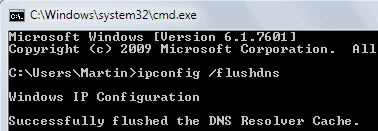
The command ipconfig /flushdns clears the DNS cache. All records up to this point in time are removed from the cache.

C:\Users\Martin>ipconfig /flushdns
Windows IP Configuration
Successfully flushed the DNS Resolver Cache.

ipconfig flushdns

Displaying the DNS Cache

You can test if the DNS cache has been flushed with the command ipconfig /displaydns. Please note that the command may still display entries, but those are new entries that have been added to the cache after it has been flushed. Antivirus software may for instance connect automatically to update servers.

C:\Users\Martin>ipconfig /displaydns
Windows IP Configuration

ipconfig displaydns

Turning Off DNS Caching

DNS caching can be turned off for a session or completely. The negative effects are that look-ups may take longer, especially in computer networks with connected network shares and devices. Computer workstations without network connections on the other hand are likely not negatively effected by the operation. It is probably best to experiment with the setting first, by disabling it temporarily for a session.

The command to stop the DNS Cache for the active session is net stop dnscache. Please note that you need administrative privileges to run the command successfully. Windows 7 users can do that by clicking on the start menu orb, selecting All Programs > Accessories, right-clicking on Command Prompt and selecting Run as Administrator. The path should be similar for other versions of Windows.

c:\windows\system32>net stop dnscache
The DNS Client service is stopping
The DNS Client service was stopped successfully.

stop dns client service

You can start the DNS client service again with the command net start dnscache.

The previous instructions turned off the DNS cache for a single session. A restart would load it as a service again. It is however possible to turn off the DNS cache completely. This is done with the shortcut Windows-r, typing services.msc and hitting enter.

Locate the service DNS Client in the listing and double-click it. The window that opens offers controls to stop the service for the current session, and to change its startup type from manual to disabled.

dns client service

Disabled means that it won’t be started with Windows, which effectively disables the DNS Cache permanently. Another benefit of this is that other users are not able to display the DNS cache to retrieve a list of visited websites and servers.

Windows users who are thinking about disabling the DNS Cache permanently should test it first by disabling the cache for the session. If they do not notice performance drops or slower than usual connections they could go ahead and disable the cache completely.

How do I resize a partition in Windows XP?

I've had a laptop for many years running with Windows XP Home edition and an
80GB hard disk. I wanted to upgrade the hard disk capacity and had bought a new
120GB hard disk. My backup and restore program moved all the data properly, but
the result was ... an 80GB partition, and the rest of the drive unavailable.
Can I resize that partition to take all the space? How?

Yes you can.

It's a pity you're not running Windows 7, where the disk management tool
will allow you to resize partitions.


For XP you're going to need an additional tool. The tool I'm going to have
you use is free, albeit just a little more work to use than some of the
alternatives.


I have an ulterior motive.


Continue reading

How do I resize a partition in Windows XP?

Windows 8 Release Date: January 7, 2013?

Rumor, rumor, rumors. Microsoft is tight lipped about their upcoming operating system Windows 8 because of the possible impact on Windows 7 sales. What we know about Windows 8 so far is an assortment of indirect official information, from job postings for instance and leaked documents. The majority of news about Windows 8 on the other hand comes from rumors. We have seen some crazy rumors in the past, that Windows 8 would be released in 2011 for instance.

Blogs and other news portals have picked up a story on the Russian website Wzor recently which detailed the Windows 8 development plan up to the retail release data of the operating system.

According to that post, Windows 8 would be available in stores on January 7, 2013.

The development allegedly is scheduled the following way:

  • Windows 8 Milestone 1, 2 and 3, with Milestone 3 development beginning in March 2011.
  • Followed by two public betas, Windows 8 Beta 1 and 2 which will both be offered publicly.
  • The Windows 8 release candidate follows and then three months later the Windows 8 RTM release.
  • Boxed retail versions are available from January 7, 2013 on.

Without confirmation that’s just another rumor out of the many available that try to pinpoint the release date of the operating system.

It would however coincide well with the projected Windows 8 release three years after the release of Windows 7 which a news post on Microsoft Netherlands’ website suggested.

The actual release data is determined by factors that are not under complete control right now, problems during development for instance could delay the release of the operating system. It is however still fair to assume that Windows 8 will not be released before the fourth quarter of 2012.

You can read Mike’s editorial on the top: Windows 8 will NOT be out January 7th 2013… Here’s Why

Is Microsoft About To Let Kinect Play Nice With Windows?


Is Microsoft About To Let Kinect Play Nice With Windows?


With hackers showing the world what Kinect is truly capable of, it was only a matter of time before Microsoft decided to release its own, official PC support for the Xbox 360's motion sensing camera.

PC gossip site WinRumors reckons that Microsoft "is currently preparing an official Kinect SDK and driver support for Windows based PCs", meaning that instead of having to mess around with code to get Kinect working on your PC, you'd just need to download the official drivers and go from there.

It's also claimed that Microsoft will be promoting the use of Kinect on PC with third parties, which will hopefully not just lead to loads of exciting new ways to interact with your computer, but to official Kinect games on the PC as well.

Microsoft preparing official Kinect drivers and SDK for Windows [WinRumors]

Send an email to the author of this post at plunkett@kotaku.com.

Switched On: Making the call on Windows Phone 7

CES 2011 saw the debut of what could be the biggest challenge to the Wintel dominance of personal computing since Windows 95 cemented its position. The combination of the Android operating system on ARM processors -- ARMdroid if you will -- grabbed most of the attention in the emerging tablet category on products such as devices such as the Motorola Xoom and LG G-Slate. But it was also clear that manufacturers -- unconstrained by Cupertinian notions of what operating system is best suited to what kind of device -- are willing to take the combination in new directions that come much closer to the notebook form factor. A clear example of this was the ASUS Eee Pad Slider. If having the tablet thunder stolen from Microsoft wasn't enough to make the company uncomfortable, clearly encroaching designs like this were.

And so, at Steve Ballmer's keynote, the company announced that the next version of Windows will support not only x86 offerings from Intel and AMD – themselves moving closer to ARM-like system-on-chips – but ARM designs from companies such as Qualcomm and NVIDIA as well. Microsoft noted that the new chip support was requested by its partners, implying that PC companies want to take advantage of the long battery life and thin form factors enabled by ARM architectures, but also bring along Windows' broad driver and software support. Microsoft clearly considers the tablet another PC, albeit one that Windows' hardware and user interface layer needs to support better. However, in striking back at Android evolution, Microsoft risks collateral damage to its own mobile OS. Can Windows Phone 7 co-exist with a ARM-based version of the real thing?

Let's look at the competition. Microsoft's support of both x86 and ARM with its "desktop" OS and support of ARM with Windows Phone 7 represents a contrast to Apple and Google -- even though, as Microsoft accurately pointed out, both have dual OS strategies. Apple reserves Mac OS for notebooks and desktops while using iOS in its tablet and smartphone, although some believe that iOS will eventually replace and not just influence Mac OS later down the road. For Google, it's open season, so to speak, as device manufacturers call the shots, but while Android has been moving to support larger devices with the Honeycomb release, Google's Chrome team has also staked out the notebook. Both operating systems support x86 and ARM, and we will no doubt see notebook-like devices with both of them.

While Apple's position is defensible (and the only one that has been successful on both fronts), Switched On has previously questioned the role of Chrome in the wake of Android's success. Is there, then, a need for the just relaunched Windows Phone 7 in a world where Windows itself runs on ARM architectures? While Microsoft refrained from any discussion of the user interface of the next version of Windows, the company made sure to remind us of its touch expertise via a revamped flat-panel version of Surface, and Windows development chief Steven Sinofsky dismissed the challenge of implementing touch user interfaces, even scaled to a variety of differently-sized screens. The next version of Windows -- and apps developed for it -- may well dynamically adapt their UI depending on the usage scenario, with a traditional desktop mode when used as a clamshell notebook, a Metro-like touch experience when used as a tablet, and a Media Center-like experience when projected onto a television screen for a 10-foot entertainment experience.

Microsoft mentioned mobile devices as candidates for this revamped Windows; there's no telling at this point how small that will go. Confusing the matter a bit more, Intel CEO Paul Otellini noted on Intel's most recent earnings call that the PC chip giant will be able to ride "desktop" Windows as it slims down into the handset market. "[W]e have the ability to put our lowest-power Intel processors, running Windows 8 or the next generation of Windows, into phones." As it stands, we might see both of Microsoft's operating systems compete for the same realm.

However, there is a good reason to draw the arbitrary line between Windows and Windows Phone 7 at devices that are indeed phones. Whereas Microsoft's hardware partners may seek more openness in its tablets than what Apple provides, handset carriers want some degree of consistency and control to reduce support costs. Providing that degree of consistency and control could also help differentiate from Android. Or, much as will be the case with 10-inch notebooks running either Android or Chrome, we may well see 4.5-inch or 5-inch handhelds running Windows or Windows Phone 7 both. Perhaps some embedded version of the former will eventually cause the demise of the latter. For the time being, though, there is a place for Windows Phone 7 even as it shares ARM support with its big brother platform.

Source:Engadget

Ross Rubin is executive director of industry analysis for consumer technology at market research and analysis firm The NPD Group. Views expressed in Switched On are his own.